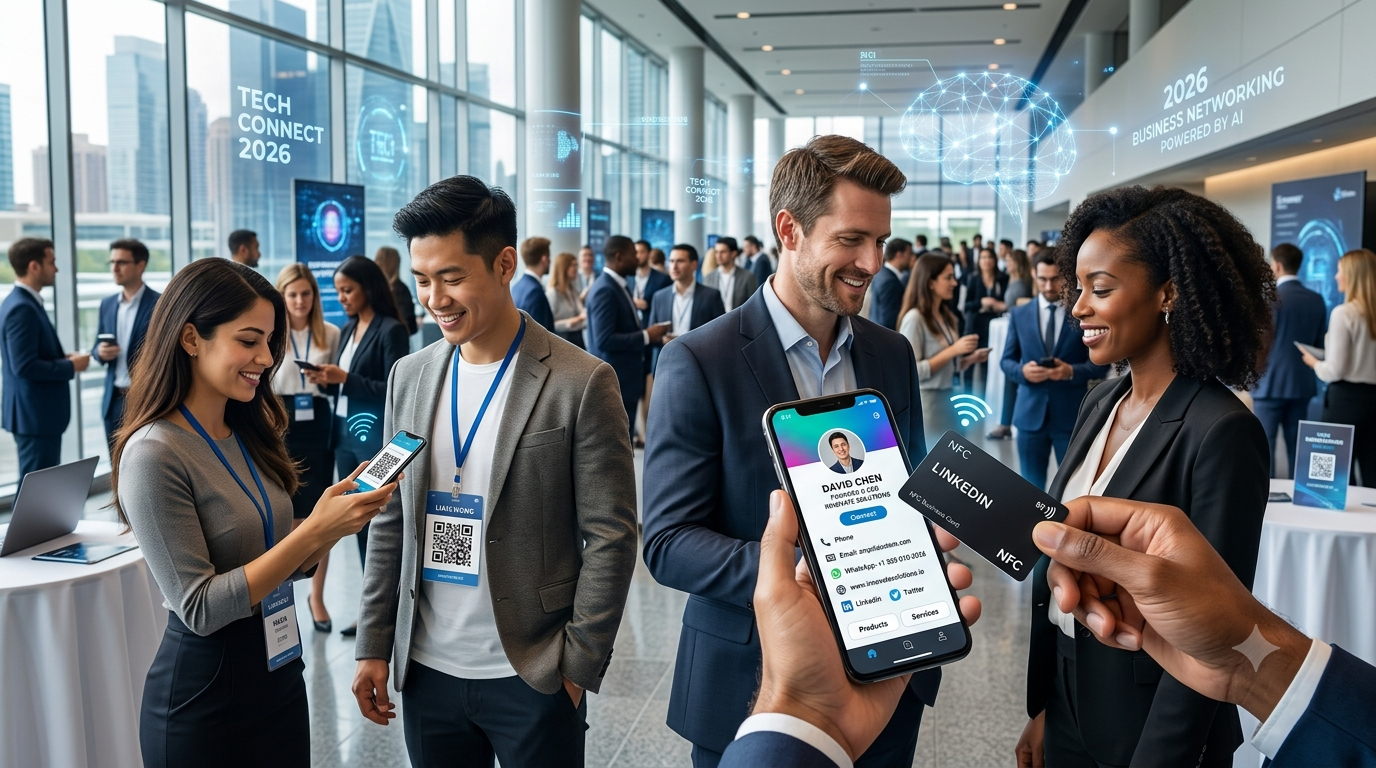
How to Use an NFC Business Card With Your Phone: Step-by-Step Guide
What Is an NFC Business Card?
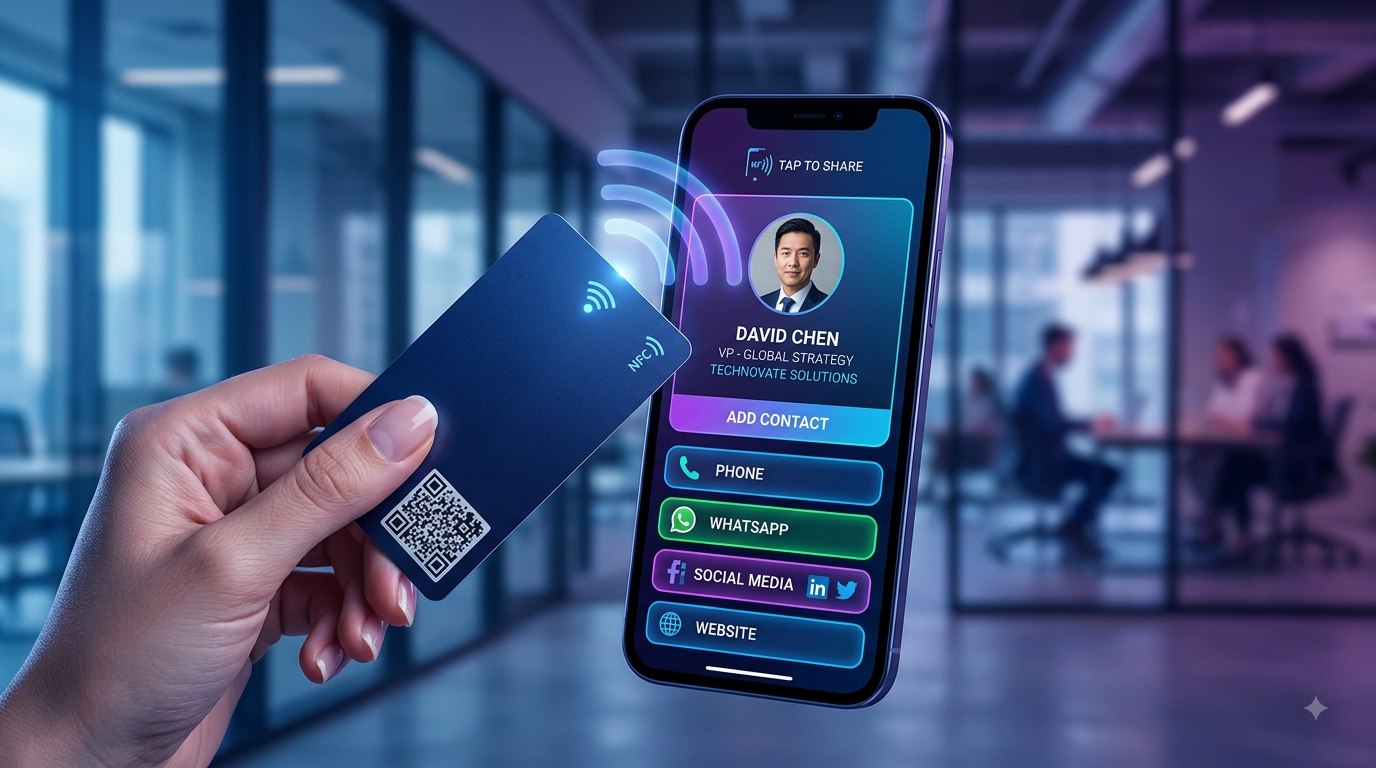
AnNFC business cardis a physical business card that contains a small NFC chip. The chip can connect your card to a digital business profile, website, contact page or other online information.
NFC stands forNear Field Communication.
When an NFC-enabled smartphone is brought close to the card, it can detect the NFC chip and access the information stored on it.
For a digital business card, the experience can be as simple as:
Tap → Open Digital Business Card → Connect
Instead of manually typing someone's phone number, website or social media username, the recipient can access the information digitally.
How Does an NFC Business Card Work With a Phone?
NFC uses short-range wireless communication.
An NFC business card generally contains apassive NFC chip, meaning the card doesn't normally need its own battery.
The chip can contain information such as a URL.
When you bring an NFC-compatible phone close enough to the card, the phone detects the chip and can recognize the stored information.
ตัวอย่างเช่น
NFC Card → Digital Profile URL → Smartphone → Digital Business Card
The digital profile can then provide buttons for:
- Save contact
- โทร
- อีเมล์
- เว็บไซต์
- อินสตากร
- ลิงค์ไดน์
- Other social media
- ผลิตภัณฑ์
- บริการ
How to Use an NFC Business Card With Your Phone
Using an NFC business card is generally straightforward.
Step 1: Make Sure Your Phone Supports NFC
First, check whether your smartphone supports NFC.
Most modern smartphones include NFC, although availability and features vary between models and operating systems.
If you aren't sure, check your phone's specifications or settings.
Step 2: Enable NFC if Required
Some phones have NFC enabled by default, while others may provide an NFC setting.
On Android, NFC can often be found under settings related toConnections,Connected Devices, orNFC/contactless payments, depending on the manufacturer and Android version.
On compatible iPhones, NFC functionality is integrated into supported system features, so the exact interaction can differ from Android.
Step 3: Unlock Your Phone
Unlocking your phone can make the NFC interaction easier and more predictable.
For some phones and NFC functions, the device may need to be awake or unlocked before it responds.
Step 4: Bring Your Phone Close to the NFC Business Card
Hold the NFC area of your smartphone close to the NFC business card.
You don't normally need to press the card against the phone.
Try moving the phone slowly across the card if it doesn't immediately detect the NFC chip.
Step 5: Wait for the NFC Notification
When the phone detects the NFC chip, it may display a notification or prompt containing the information stored on the card.
If the NFC card contains a web address, the phone may offer to open the link.
Step 6: Open the Digital Business Card
Tap the notification or link.
You should then be taken to the digital business card associated with the NFC card.
The profile may contain:
Name → Business → Contact → WhatsApp → Website → Social Media
Step 7: Save or Contact the Person
Once the digital card opens, you can choose the action you need.
ตัวอย่างเช่น
- Save their contact
- Call them
- Send an email
- Start a WhatsApp conversation
- Visit their website
- Follow their social media
- View products or services
That's it.
You have exchanged business information without manually entering all the details.
How to Receive Someone's NFC Business Card on Your Phone
If someone gives you an NFC business card, you don't need to physically take the information from the card.
Simply:
- Unlock or wake your phone.
- Make sure NFC is available on your device.
- Hold your phone near the NFC business card.
- Wait for the phone to detect the NFC chip.
- Tap the notification or link.
- Open the digital profile.
- Save the contact or connect with the person.
The exact steps can vary depending on your phone model.
How to Share Your NFC Business Card With Someone
Ifyou own an NFC business card, the process is even easier.
Instead of asking someone to type your contact information, you can simply tell them:
"Tap your phone on my card."
They can bring their compatible smartphone close to your NFC card.
The phone detects the NFC chip and opens your digital profile.
You can then continue your conversation while they save your information.
What Can an NFC Business Card Share?
An NFC card can be used to open different types of digital information.
For business networking, a URL leading to a digital business card is particularly useful.
Your digital profile could contain:
ข้อมูลการติดต่อ
- ชื่อ
- Phone number
- อีเมล์
- Business name
Business Information
- Company description
- บริการ
- Business location
- Opening information
Social Media
- อินสตากร
- ลิงค์ไดน์
- แฟสบุ๊ค
- YouTube
Communication
- โทรศัพท์
- อีเมล์
Online Presence
- เว็บไซต์
- Portfolio
- Online store
This gives an NFC card considerably more flexibility than a traditional printed card.
How to Use an NFC Business Card on Android
The exact process depends on the Android manufacturer and device.
Generally:
1. Check NFC Support
Open your phone's settings and search forNFC.
2. Turn NFC On if Necessary
If your phone provides an NFC toggle, make sure it is enabled.
3. Unlock the Phone
Keep your phone awake and unlocked when testing the card.
4. Locate the NFC Area
The NFC antenna can be located in different areas depending on the phone.
5. Tap the Phone Against the NFC Card
Bring the phone close to the card.
6. Open the Detected Link
When the phone recognizes the NFC tag, follow the notification or prompt.
Because NFC antenna placement varies between devices, you may need to move the phone slightly to find the best position.
How to Use an NFC Business Card on iPhone
Many modern iPhones support NFC functionality.
The exact behavior depends on the iPhone model and iOS version.
For a web-based NFC business card, the general experience is:
Bring iPhone Near NFC Card → Detect NFC Information → Open Link → View Digital Business Card
If the card doesn't respond immediately, make sure the phone is awake and try moving the top portion of the iPhone closer to the NFC card.
Where Is the NFC Sensor on a Phone?
The exact NFC antenna location varies between smartphones.
On many devices, the NFC antenna is located toward theback of the phone, but its exact position differs by model.
If you're having trouble detecting an NFC card:
- Hold the back of your phone near the card.
- Move the phone slowly across different areas of the card.
- Try the upper portion of the phone first.
- Keep the phone close for a moment.
- Make sure NFC is enabled if your device requires it.
Once you find the NFC sweet spot, tapping becomes much easier.
How Close Does Your Phone Need to Be?
NFC is designed for very short-range communication.
You generally need to bring the smartphone close to the NFC card.
Unlike Bluetooth or Wi-Fi, NFC isn't designed to work from several meters away.
For an NFC business card, this short range is actually useful because it makes the sharing interaction intentional:
Bring Phone Close → Tap → Share
Do You Need an Internet Connection?
The NFC chip itself doesn't require an internet connection to be detected.
However, if the NFC card contains a URL to an online digital business card, the phone generally needs internet access to load that web page.
So there are two separate steps:
NFC Detection → Doesn't necessarily require internet
Opening Online Digital Profile → Usually requires internet
Do You Need an App to Use an NFC Business Card?
For NFC cards that open a standard web URL, the recipient generally doesn't need to install a dedicated app.
The phone can detect the NFC information and open the associated web link.
This is one of the advantages of using a web-based digital business card.
The recipient can simply access the profile through their phone.
What If NFC Isn't Working on Your Phone?
Sometimes an NFC business card may not work immediately.
Here are some things to check.
Check NFC Support
Make sure your phone actually supports NFC.
Check NFC Settings
Android phones may have an NFC setting that can be switched on or off.
Wake Your Phone
Make sure your phone is awake.
Try a Different Position
The NFC antenna isn't necessarily in the center of the phone.
Move the phone slowly around the card.
Remove Thick Cases
Very thick cases or cases containing metal or magnetic components can sometimes interfere with NFC communication.
Try removing the case temporarily.
Try Another NFC Card
If possible, test another NFC tag or card to determine whether the problem is the phone or the card.
Check the NFC Link
If the phone detects the card but the page doesn't open correctly, the problem may be with the information programmed into the NFC chip or the destination website.
NFC Business Card Not Working? Quick Troubleshooting Checklist
| Problem | What to Try |
|---|---|
| Phone doesn't detect card | Check NFC support and settings |
| Card works sometimes | Move phone slowly across card |
| No notification | Wake/unlock phone |
| Thick phone case | Remove case temporarily |
| NFC works but page doesn't load | Check internet connection |
| Link opens incorrectly | Check NFC tag configuration |
| One phone works, another doesn't | Check device-specific NFC behavior |
| QR works but NFC doesn't | Test NFC chip separately |
NFC Business Card vs QR Code
If your NFC business card also has a QR code, you have two ways to share your information.
NFC
Tap → Open Digital Profile
รหัส QR
Scan → Open Digital Profile
QR codes can be particularly useful when:
- The recipient's phone doesn't support NFC
- NFC is disabled
- The user prefers scanning
- You are displaying your profile on printed materials
For this reason, combiningNFC + QRcan be a smart approach for business networking.
Can You Save an NFC Business Card to Your Contacts?
Yes, but the exact process depends on how the digital business card is configured.
An NFC card typically opens a digital profile rather than directly transferring every contact field into your phone.
Once the profile opens, you may be able to select an option such asเก็บติดต่อorAdd to Contacts.
This can make it easier to save the person's details than manually typing them from a printed card.
How to Use an NFC Business Card for WhatsApp
NFC becomes particularly useful when your digital profile includes WhatsApp.
The process can be:
Tap NFC Card
↓
บัตรธุรกิจดิจิตอล
↓
Tap WhatsApp
↓
Start Conversation
This removes the need to manually search for or type a phone number.
It can be useful for:
- Business owners
- Salespeople
- Real estate agents
- Consultants
- Retailers
- Freelancers
- Service providers
How to Use an NFC Business Card for Your Online Store
Businesses can also connect their NFC card to a digital business profile that contains an online store.
ตัวอย่างเช่น
Tap NFC Card
↓
บัตรธุรกิจดิจิตอล
↓
Online Store
↓
ประเภทสินค้า
↓
Product
↓
This can turn a simple networking card into a gateway to your products and services.
WithYourCard.in, businesses can create online stores with different product categories and redirect customers to WhatsApp for purchases.
How to Create an NFC Business Card With YourCard.in
If you want to use an NFC card for your business, you can create your digital profile first.
Step 1: Create Your Digital Business Card
Add your:
- ชื่อ
- การธุรกิจ
- โทรศัพท์
- อีเมล์
- เว็บไซต์
Step 2: Add Social Media
Connect your relevant social profiles.
Step 3: Add Products or Services
If you're a business, showcase what you offer.
Step 4: Customize Your Profile
Add your photo, logo and branding.
Step 5: Order Your NFC Card
YourCard.in provides NFC card ordering options.
Step 6: Tap and Share
Use the NFC card when meeting customers or professional contacts.
Already Have a Physical Business Card?
You don't necessarily need to recreate your business information manually.
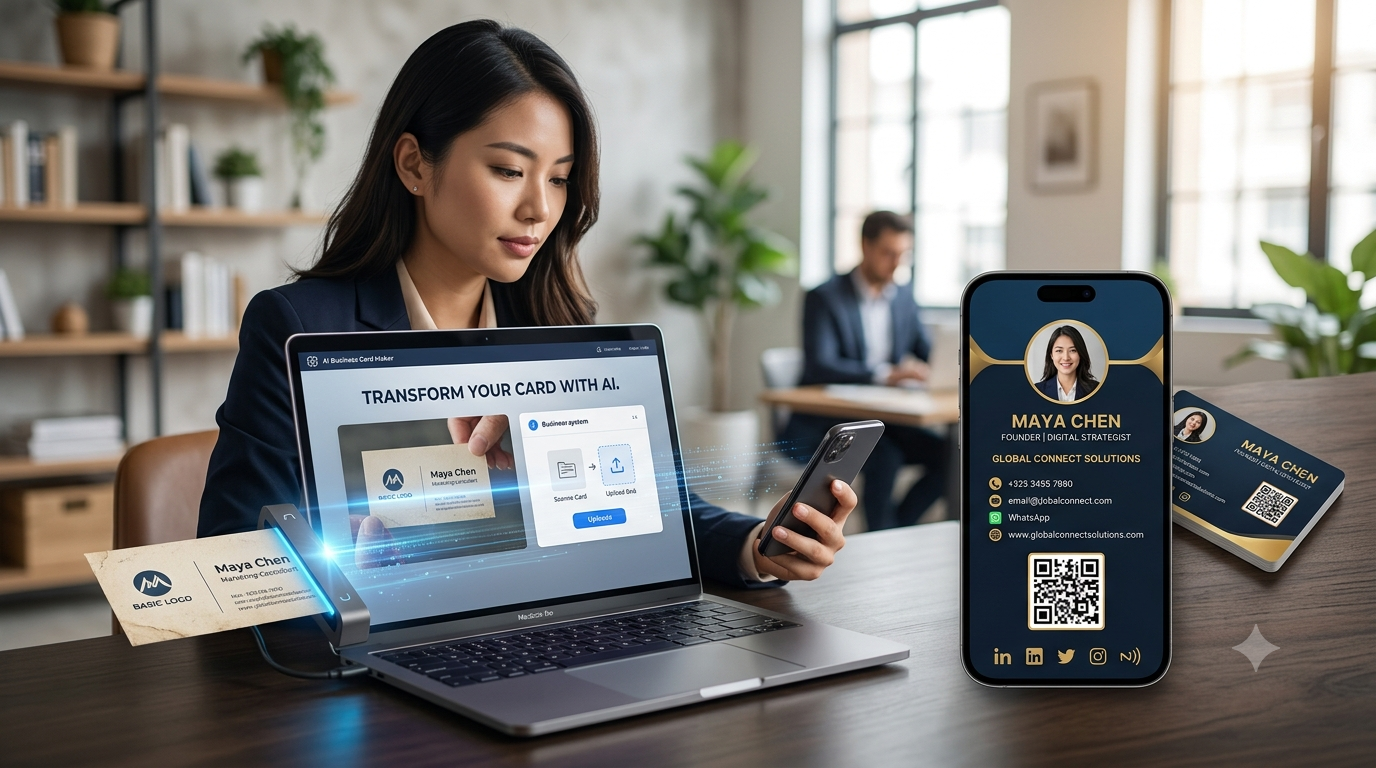
YourCard.in allows you toupload a photo of an existing physical business cardand use it to create a digital business card.
You can then connect your digital profile with your NFC networking strategy.
The process becomes:
Existing Business Card → Upload Photo → Digital Card → NFC Sharing
This is especially useful if you've already invested in printed visiting cards and want to move toward digital networking.
Best Practices When Using an NFC Business Card
Keep Your Digital Profile Updated
Your NFC card is only as useful as the profile it opens.
Update your:
- Phone number
- Business information
- เว็บไซต์
- Social media
- บริการ
- ผลิตภัณฑ์
when necessary.
Add a QR Code
A QR backup gives people another way to access your profile.
Make Contact Buttons Obvious
Don't make users search for your phone, WhatsApp or email.
Keep Your Profile Mobile-Friendly
Most people will access your card from their smartphone.
Test Your NFC Card
Test the card on multiple compatible smartphones before using it at an important event.
คําถาม ที่ ถามบ่อย
How do I use an NFC business card with my phone?
Make sure your phone supports NFC, enable it if necessary, wake your phone, and bring the phone close to the NFC business card. Follow the notification or link that appears.
Do I need an app to read an NFC business card?
Usually not if the NFC card contains a standard web link. A compatible phone can generally open the link using its built-in capabilities.
Does NFC work without internet?
The NFC detection itself can work without internet, but an online digital business card normally requires an internet connection to load.
Can iPhone read NFC business cards?
Many modern iPhones support NFC. The exact NFC experience depends on the iPhone model and iOS version.
Can Android phones read NFC business cards?
Many Android phones support NFC. Check your specific phone model and NFC settings.
Where should I tap my phone?
Hold the back of the phone close to the NFC card and move it slowly if necessary. The exact NFC antenna position varies by phone.
Why isn't my NFC business card working?
Check NFC support and settings, wake your phone, remove a thick case, move the phone around the card, and test another NFC tag if possible.
Can an NFC business card open WhatsApp?
Yes. An NFC card can open a digital business profile containing a WhatsApp option.
Can I use both NFC and QR codes?
Yes. Using both provides a tap-based and scan-based way to access the same digital business profile.
Can I use YourCard.in with an NFC business card?
Yes. You can create a digital business card with YourCard.in and order an NFC card for sharing your digital profile.
Final Thoughts
Using anNFC business card with your phoneis simple once you understand how NFC works.
Instead of manually typing contact information, you can bring your smartphone close to the NFC card and open a digital profile.
From there, you can:
Save Contact → Call → WhatsApp → Visit Website → Follow Social Media → View Products
For businesses, this makes NFC more than just a replacement for a traditional visiting card.
WithYourCard.in, you can create a digital business card, add your contact and social information, connect WhatsApp, showcase products, create an online store, and use an NFC card to share your digital profile.
You can also keep aQR code as a backup, giving customers both tap and scan options.
Your business card doesn't have to be just a piece of paper. With NFC, one simple tap can open your entire digital business presence.